
AI for
Muggles
Get started by building a website that changes when you talk to it. All it takes is a little vibe coding magic.
What's the Big Deal
with AI Anyways?
Everyone's talking about AI. Your feed is full of it, your colleagues are experimenting, and you're wondering: what does this actually mean for me?
Here's what it means. Things that used to require hiring a developer or a designer, you can now do yourself. Not someday. Now. Not by dragging boxes around in a dashboard. By describing what you want and watching it appear in front of you.
I had a love-hate relationship with WordPress for over ten years. As soon as I realized I could literally speak my own words — rambling, voice-to-text — and my website copy, design, everything would change in front of my eyes without clicking around in a dashboard, changing settings, watching plugins break — that was when it clicked.
I killed my WordPress website. Everything you see on pirateskills.com, including this page, is vibe coded.
But you need to see the magic unfold in front of your own eyes. Click the button below. It opens a free AI tool with a prompt already loaded. Hit enter and watch. In about four minutes, a full website appears — layout, colors, products, text, all of it. Built from one sentence.
That's the feeling. That's what we're going to do with your project.
And it turns out a website is the perfect place to start. It's the simplest thing you can build — just what people see when they visit your page. No moving parts behind the scenes. You probably need one anyway, for your business, your project, your personal brand. And you end up with something real — a live URL you can share, not a tutorial exercise.
It also teaches you the one skill that unlocks everything else: describing what you want clearly enough for AI to build it. Master that on a website, and you can do it with anything.
Two Hours,
Not Two Weeks
The Vibe Hackathon Cologne landing page — 10 sections, design, copy, a payment button — shipped between breakfast and lunch.
There was already a version on Startplatz.de, but it didn't fit our style or tone of voice at all. I pointed the AI to it for basic content — dates, times — then discussed the outline, structure, look and feel, and tone of voice I wanted. The first version was pretty solid.
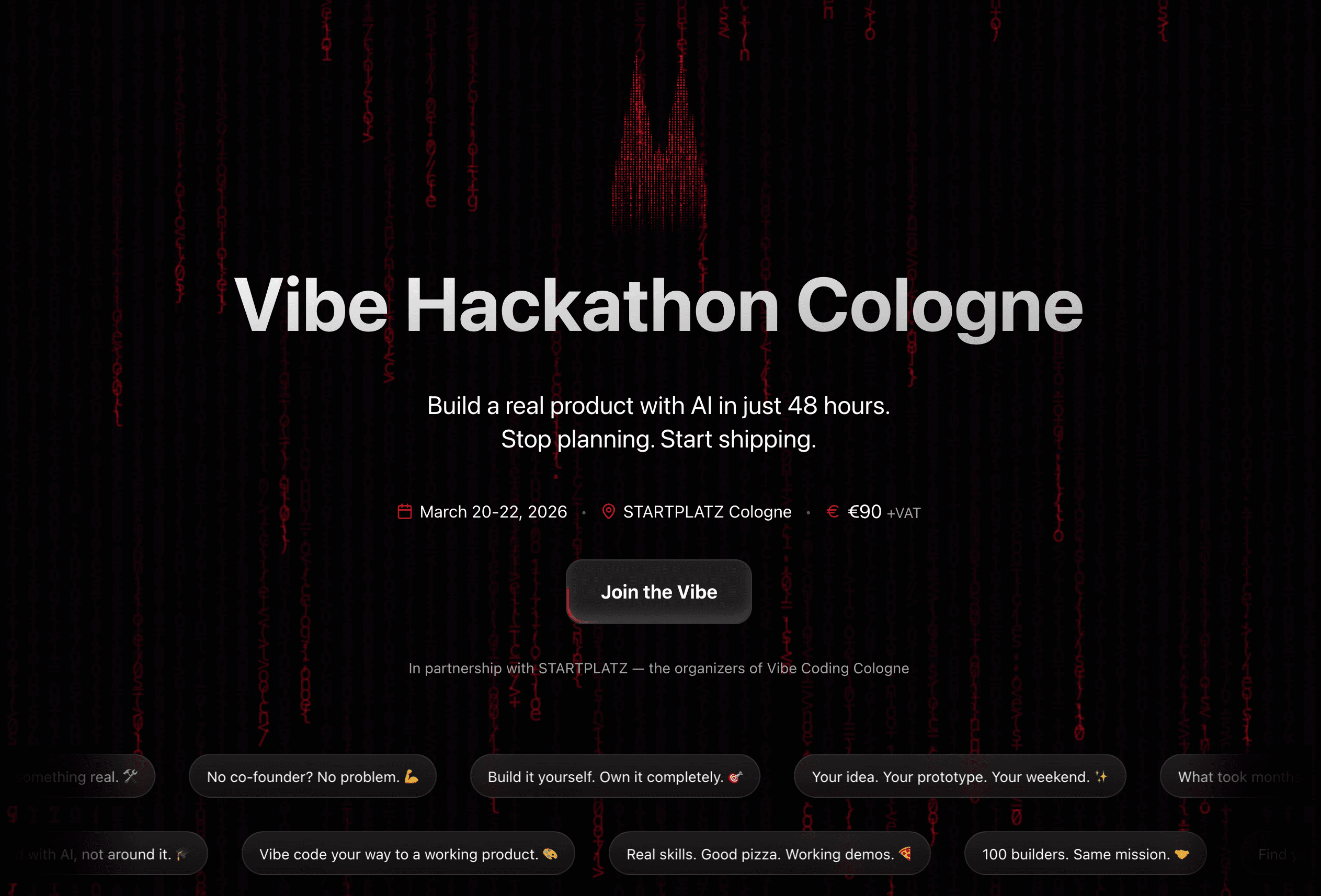
The landing page itself took maybe an hour. Then the fancy stuff — Stripe checkout, thank-you page, follow-up emails — took another hour. What would normally mean briefing a designer, waiting for drafts, going back and forth for two weeks — done in one sitting by one person.
And when something needed changing? Just say so. The website changes when you talk to it.
People are always surprised how fast it all goes. You say something, give it context, and in a few seconds you already see the change. Then you iterate. They're also surprised how much I talk to the AI — not small, precise changes but a lot of things at once, making the progress really fast.
Let's Vibe Code Your Website
Step by Step
Here's the deal. You're going to build a real website today. Not a Canva graphic. Not a template. A proper website with your own words, your own design, and a live URL you can share with anyone.
The chat builders you tried earlier are great for simplicity, but they keep you locked into their system. The setup I'm about to show you gives you the freedom to use whichever tool, model, and hosting you want — now and in the future. That's what you need to learn anyway if you want to go beyond website building into a full product. Six steps, each one simpler than you think.
Step 1: Set Up Your AI Editor
The tool we recommend right now is Cursor. The main reason: it has the broadest span from being beginner-friendly to still being the right tool for even the most senior developers. You won't outgrow it. Think of it as a text editor with an AI built right in — you open a chat and tell it what you want, just like the chat builder, except now the AI works directly on your files, on your computer.
Good alternatives worth checking out: Codex, Antigravity, and Claude Code. But for this guide, we'll stick with Cursor.
Go to cursor.com and download the app. It works on Mac, Windows, and Linux. Install it like any other app — drag it into your Applications folder (Mac) or run the installer (Windows).
When you open it for the first time, it will ask you to create an account. Before you do — if you don't have a GitHub account yet, set up a free one first. Then use the GitHub login for Cursor. Most vibe coding tools support GitHub login, and it helps with a lot of underlying integrations between the different tools down the line.
You get a two-week free trial to start. After that, expect to spend around $20/month — that's the current minimum for vibe coding, no matter which tool you use. It's essentially for the AI usage that's included. The good news: everything else you'll need has extremely generous free tiers that are very hard to reach when just building a website.
Before you open Cursor, create a folder on your computer where you want to keep your projects. A good spot is something like ~/vibe-coding/my-website (that's a folder called "vibe-coding" in your user folder, with a subfolder called "my-website"). Then open that folder in Cursor — File → Open Folder, and select it. This is your project.
You'll see something that looks like a code editor. Don't panic. You don't need to understand any of the buttons yet. The only thing that matters right now is the chat panel — that's where you talk to the AI.
Read more on the Builder Codex — Local Setup →
Step 2: Create Your Project
Now we need a blank website to work with. Instead of explaining what all the tech pieces are, let's just have the AI set it up for us. Open the Cursor chat and paste this:
The AI will start working. It might take a minute or two. It will install some things, create files, and set everything up. You'll see it typing commands and creating folders — just let it do its thing.
Things will go wrong. That's normal. You'll see red error messages, warnings, and things that look scary. Don't panic. This happens to everyone, especially on Windows. The important thing to know is: the AI can fix it for you. Just tell it what happened. Here are common things you might see:
- "Node.js is not installed" → say: "Install it for me."
- "Permission denied" → say: "Fix this permission issue."
- "Port 3000 is already in use" → say: "Kill whatever is using that port and try again."
- Any red error message → say: "Fix this error."
The rule is simple: keep asking the AI to handle it until the website loads in your browser. You don't need to understand the errors. You just need to keep going.
When it's done, you should see the default starter page open in your browser. That's your website. It's running on your computer, and nobody else can see it yet. We'll fix that later.
Don't worry about what any of the tech names mean. These are the building blocks the AI uses behind the scenes. You don't need to learn them. The AI knows them, and that's enough.
Read more on the Builder Codex — Local Setup →
Step 3: Build Your Website
This is where it gets fun. You're going to describe the website you want, and the AI is going to build it for you. Just like the chat builder, except now it's building real files that live on your computer.
The best way to start is to let the AI interview you. Paste this into the Cursor chat:
The AI will ask you a few questions — things like what your business does, who your audience is, and what feeling you want the website to have. Answer in plain language. You don't need to be precise. You can always change everything later.
Pro tip: during the interview (or at any point later), you can drop links to other websites that have the kind of content, structure, or tone you like. You can also drag in screenshots or images to show the AI what design direction you're going for. The more context you give it, the better the first version will be.
If you just want to try it out first and don't have a project yet, use the same prompt from the beginning — the pirate wizard shop:
Either way, the AI will start building. Watch your browser — refresh the page and you'll see it take shape. A hero section appears. Then an about section. Then cards. Then a contact form. All from one conversation.
Here's the best part: you can keep talking to it. Don't like the headline? Tell it. Want different colors? Say so. Want to add a testimonials section? Just ask. This is the "website that changes when you talk to it" part. Every change takes seconds.
Just keep going until you like what you see. There's no limit. You're not paying per change. This is the magic loop: describe, see, refine, repeat.
Read more on the Builder Codex — Landing Page →
Step 4: Save Your Work
Your website exists on your computer now, but only on your computer. If your laptop dies, it's gone. So let's back it up properly.
We're going to use two things: Git (a tool that saves snapshots of your project — think of it like version history in Google Docs) and GitHub (a website that stores your project online so you can access it from anywhere).
Remember the GitHub account you created in Step 1? That's about to pay off. We need to connect your computer to that account so you can push your code online.
First: a one-time setup
Before the AI can save your project, we need to install a couple of tools and log you into GitHub from the terminal. This only happens once — after this, saving is a single command forever. Pick your operating system and paste the prompt:
During the GitHub login step, a code will appear in your terminal (something like XXXX-XXXX). Your browser opens automatically — paste the code there, click Authorize, and you're connected. Takes 30 seconds.
One thing that trips people up: the AI will run commands in Cursor's built-in terminal (the panel at the bottom of the screen). If you don't see it, look for the Terminal tab at the bottom, or press Ctrl+` to toggle it. That's where the login code will show up.
Now: save and upload your project
With the setup done, this is the easy part. One prompt, and your entire project is safely stored on GitHub:
When it's done, your browser will open to your brand new GitHub repository. All your files are there, safely stored online. You could access them from any computer in the world.
So what just happened? Two things. First, the AI created a commit — a snapshot of your entire project at this moment, like pressing "save" in a game. You can always come back to this exact version. Then it pushed that snapshot to GitHub — uploaded it to the cloud so it's safely backed up.
From now on, whenever you make changes you want to keep, just tell the AI: "Commit and push my changes." That's your save button. It will also write a short description of what changed — a commit message. Think of it like a note on each save point. The AI is actually quite good at writing these, often better than we are.
You can also do this through Cursor's built-in source control panel (the branch icon in the left sidebar), but honestly — just telling the AI is faster and it handles everything for you.
Read more on the Builder Codex — Going Live →
Step 5: Go Live
Right now your website only works on your computer. Let's put it on the internet so anyone with the link can see it.
We're going to use Vercel. It has an extremely generous free tier — you'd need well over 100,000 visitors before you'd ever need to upgrade. And it connects directly to your GitHub, which makes everything automatic. Here's what to do:
- Go to vercel.com and sign up with your GitHub account. When asked to choose a plan, pick the free Hobby plan.
- Click Add New Project.
- You'll see your GitHub repository listed — it's probably the only one there. Select it.
- Click Deploy. Wait about a minute. Vercel will build your website and give you a live URL.
- That's it. You have a URL like my-website.vercel.app — open it on your phone, send it to someone.

You're live. You did it.
Open that URL on your phone. Send it to someone. That's your website, on the internet, and you built it.
Here's the beautiful part about what you've set up. From now on, whenever you want to change your website, you just talk to it in Cursor. Describe what you want, watch the AI make the changes, and once you're happy, say "commit and push this." That automatically triggers Vercel to create a new version of your live website — usually in less than a minute. No extra steps, no uploading, nothing. Talk, commit, live. That's the entire workflow from now on.
One more thing: the .vercel.app URL is great for testing and sharing early versions, but when you're ready for a proper domain — yourname.com or yourbusiness.de — Vercel is also one of the easiest places to buy and manage one. You pick your domain, and everything gets configured automatically. No DNS settings, no tech headaches.
Read more on the Builder Codex — Going Live →
Step 6: Show Off
Send it to your friends. Seriously — open that URL on your phone right now and text it to someone. You just built a website with AI. That deserves a reaction.
If you want feedback from people who get it, drop your link in the Vibe Coding WhatsApp group. It's 500+ people who are all learning this stuff — they'll celebrate with you and help you improve it. That's also the best way to keep learning about vibe coding: real questions, real projects, real feedback.
And now the fun begins. Think about what else you want your website to do. Add new pages, upload images, connect a form to collect emails, add a blog — whatever you like. You already know the workflow: describe what you want, let the AI build it, commit and push. The Builder Codex picks up right where this article ends — same tools, same workflow, next level.
Why We Didn't Just
Use the Easy Tool
The chat builders are genuinely impressive for a first taste. So why go through the setup?
Because you didn't just build a website. Look at what you actually learned: you set up a real code editor, created a project from the terminal, connected it to version control, pushed to a remote repository, and deployed it to production. Those are the exact same fundamentals you need to build a real SaaS — with registered users, a database, real functionality, and payments. The chat builder gives you a page. This setup gives you a foundation.
I know — the setup felt like the hardest part. You signed up for magic potions class and the first lesson looked a lot like chemistry. There's a strict teacher in the back of your mind saying "this isn't what I came here for." All you wanted was a love potion, and instead you're configuring Git. But that's the thing — you only sit through chemistry once. And now that you have, the magic is yours forever.
Collaboration. If you ever want to work with someone else — a co-founder, a developer, a hackathon team — you need a way to share and combine work without breaking things. That's what Git and GitHub do. The chat builder gives you a solo island. The real setup gives you a shared workshop.
Compounding. Everything you learned today compounds. Same setup, same skills, same AI editor — from landing page to full product. The Builder Codex picks up exactly where this article ends.
Ownership. Your code lives on your computer and on GitHub. Not on someone else's platform. You can move it, modify it, hand it to someone. It's yours.
If you already picked your vibe coding stack, this is your first real project. If you haven't, start here anyway — the stack this article builds on is the same one we recommend.
Your Ship Plan
Let's bring this all together. Don't just read this — get this done.
Ready to Go Deeper?
Builder Lab
·Wed, Mar 18 · 18:00 CETFree weekly online session where we build real projects together. Bring your website and get live feedback.
Builder Forge
·In 32 days · Wed, Apr 16-week cohort program to build and ship your first product. Weekly workshops, accountability, and hands-on guidance.
Growth Lab
·Wed, Mar 11 · 18:00 CETFree weekly online session where we work on funnels and positioning together. Bring your challenges, get live feedback.
Growth Forge
·In 74 days · Wed, May 136-week cohort program to build predictable, scalable revenue. Weekly workshops, accountability, and hands-on guidance.
Questions & Answers

Founder from Cologne with 15 years of startup experience across 9 ventures. After helping thousands master growth marketing, Ben learned vibe coding from scratch and launched CaptAIn within three months. He leads the Vibe Coding Cologne community, blending real founder experience with teaching clarity.